Keep your printed materials useful
The code points to a saved VikingTools link. Update its destination when a campaign, page or menu moves.
QR Studio
Choose what people open after scanning: a website, a photo page, Wi-Fi or contact details. Design the code and optional paper sign in the same workspace. Save an editable project to keep its phone-page text, colours and print layout together.
Try the example without an account. Sign in to save an editable code.
The code points to a saved VikingTools link. Update its destination when a campaign, page or menu moves.
Save the new website address in your QR archive, then scan the printed code to check the result.
Your account’s QR library keeps saved codes together so you can reopen them and manage their destinations.

Put your saved QR code on a table, counter or printed card. Update its destination from your archive when your plans change.
Three simple steps
Create the hosted code before you print. A test scan now makes later destination updates easier to check.
Read the practical guides ↗Use a website, create a photo page, or make a fixed code for Wi-Fi, contacts and other content. Fixed codes do not need an account.
Customise the phone page, code appearance or printed sign. Save hosted editable codes before downloading or printing, then test a scan.
Reopen an editable project to change its destination, edit a new photo-page design or reprint its sign. Existing image-only pages remain replaceable images.
Your archive
My QR projects keeps your hosted editable codes, new photo-page text and design settings together. Reopen a project to update its destination or print design while retaining the same QR link. Fixed codes stay on your device; reusable colour presets remain available in the appearance editor. Hosted links depend on VikingTools staying online, and deleting a code disables its link.
Start free
Start with the free account. Choose membership when its extra capacity is useful to you.
Up to 5 saved editable QR codes. The separate static QR generator also works without an account.
Sign in or create an accountUp to 100 saved editable QR codes, plus higher limits on other saved tools and an ad-free experience.
Membership also removes ads across VikingTools.
See membership in my accountMembership renews monthly; cancel from your account. Check the final price, payment availability and terms before subscribing. Membership raises selected limits, not every limit. Membership terms.
Explore the tool
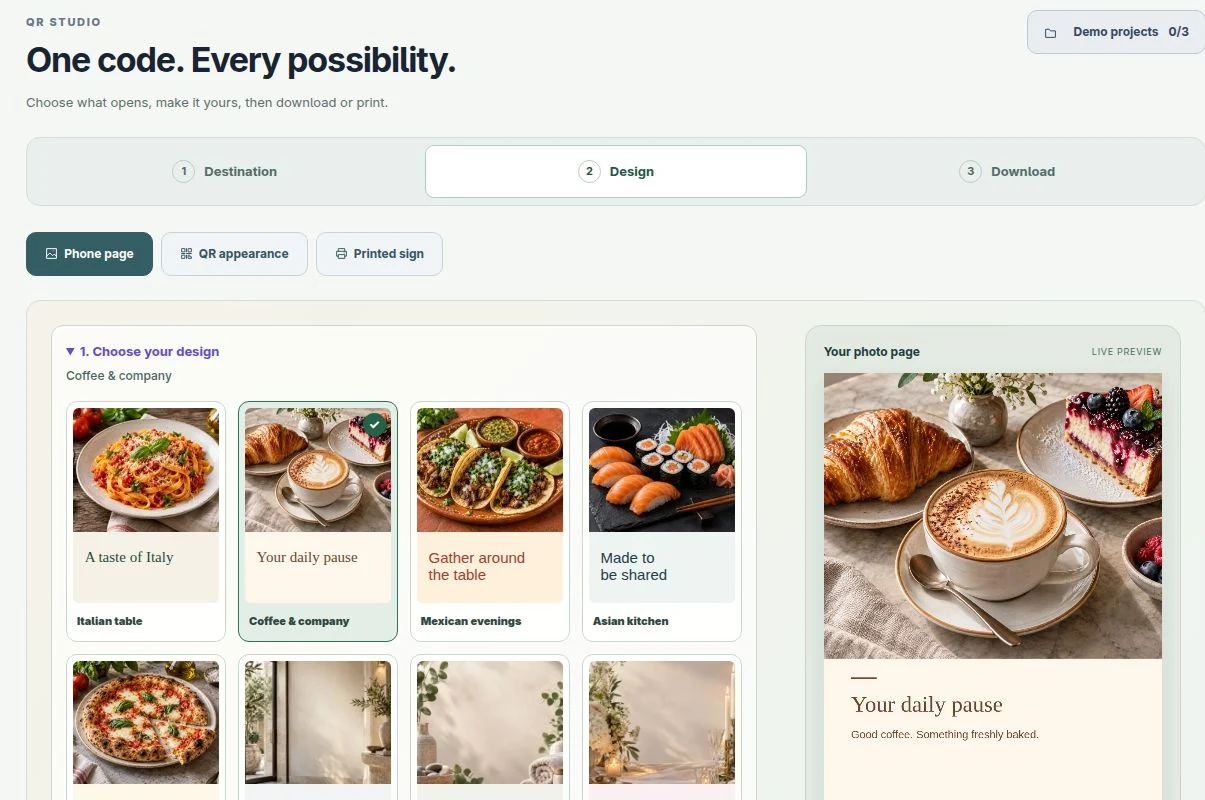
Try QR Studio: choose a destination, design a photo page or printed sign, then open the real tool and sign in to save your project online. Changes are not saved in this demo.
Your questions, answered
No. A static code contains its destination directly. An editable code must be created with a hosted link from the start. Updating that link’s destination is what makes later changes possible.
No. The example simulates destination updates locally. Sign in to create a saved editable code that works outside the demonstration.
Use a static code if its address will not change and you want the code to point directly there. Choose an editable code when changing destinations without reprinting is useful.